Employee's Guide: How to Review and Forecast Absence Balances
1. Login to MyPack Portal
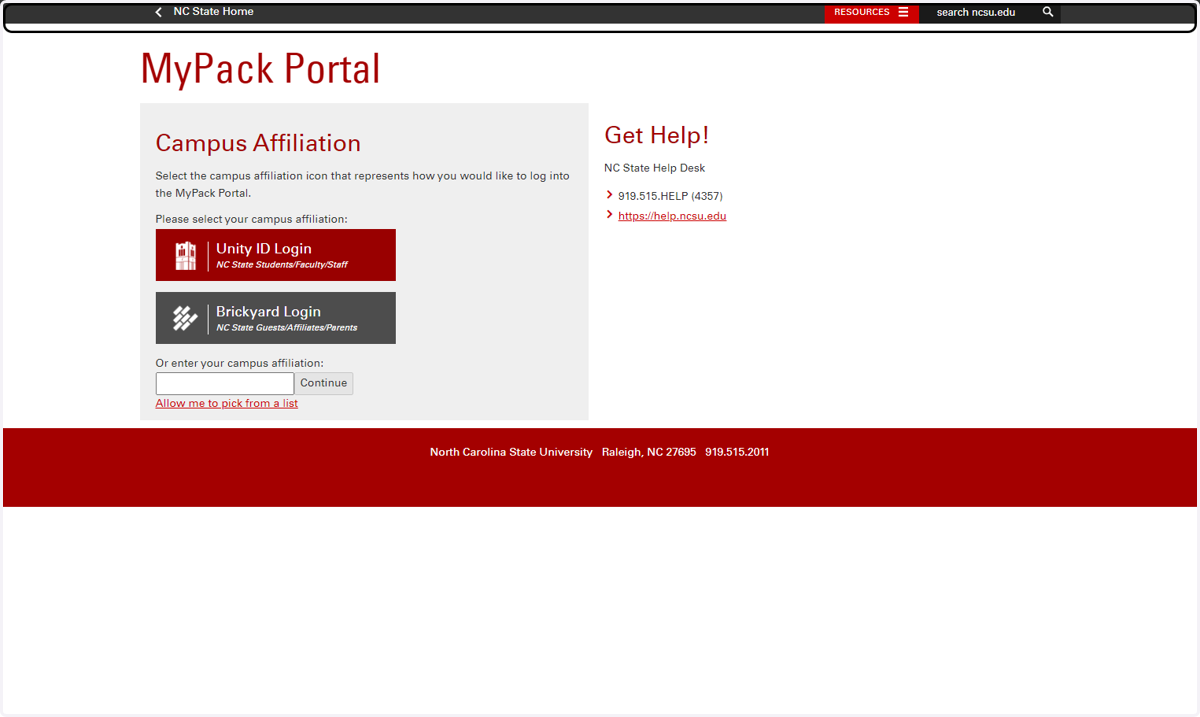
Navigate to MyPack Portal (http://mypack.ncsu.edu) using a web browser.
Select the NC State Students/Faculty/Staff Campus affiliation.
Enter your Unity ID and Password when prompted to login to MyPack portal
2. Navigate to the Employee Self Service Homepage
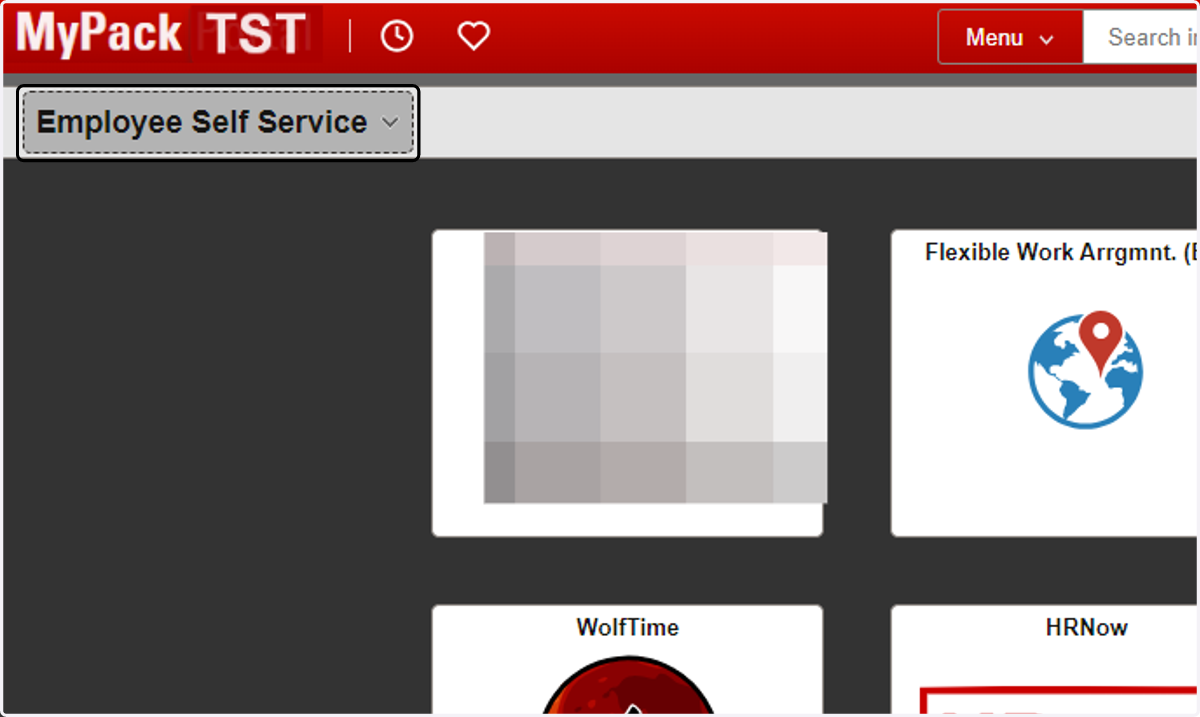
Upon successful login to MyPack Portal, if you do not land on the Employee Self Services homepage, select the Employee Self Service option from the dropdown menu in the top left corner of the banner
3. Navigate to the WolfTime tile
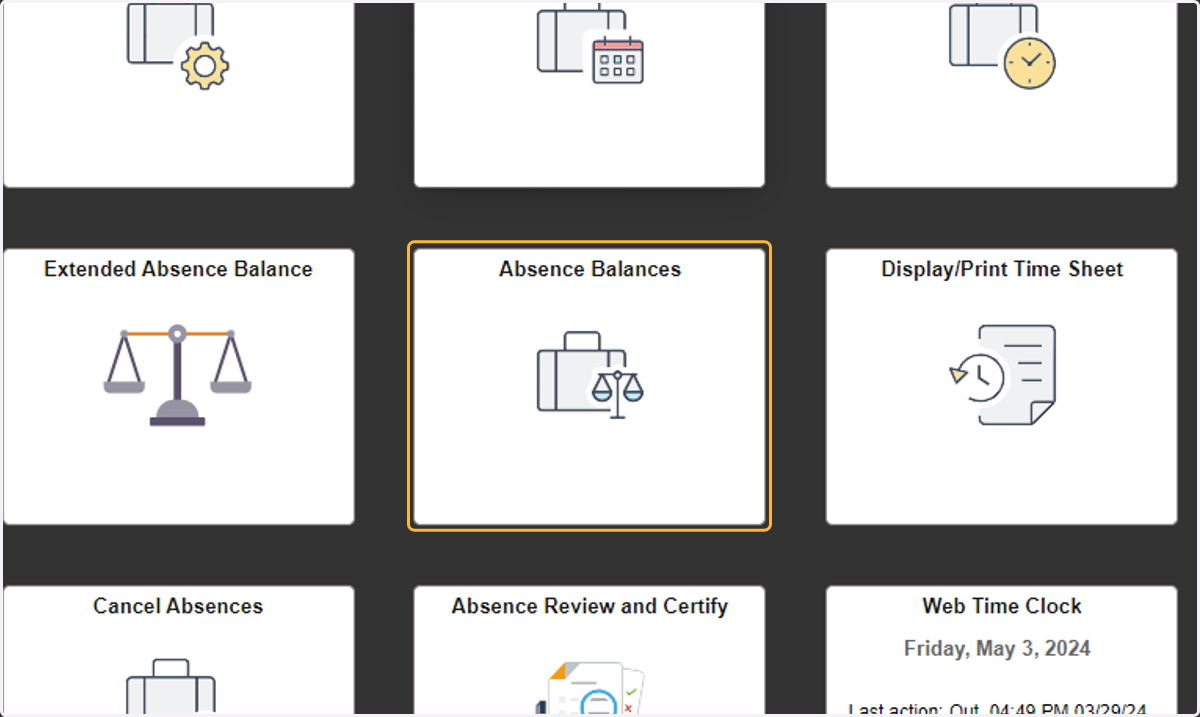
4. Navigate to Absence Balances Tile
5. Viewing Current Balances
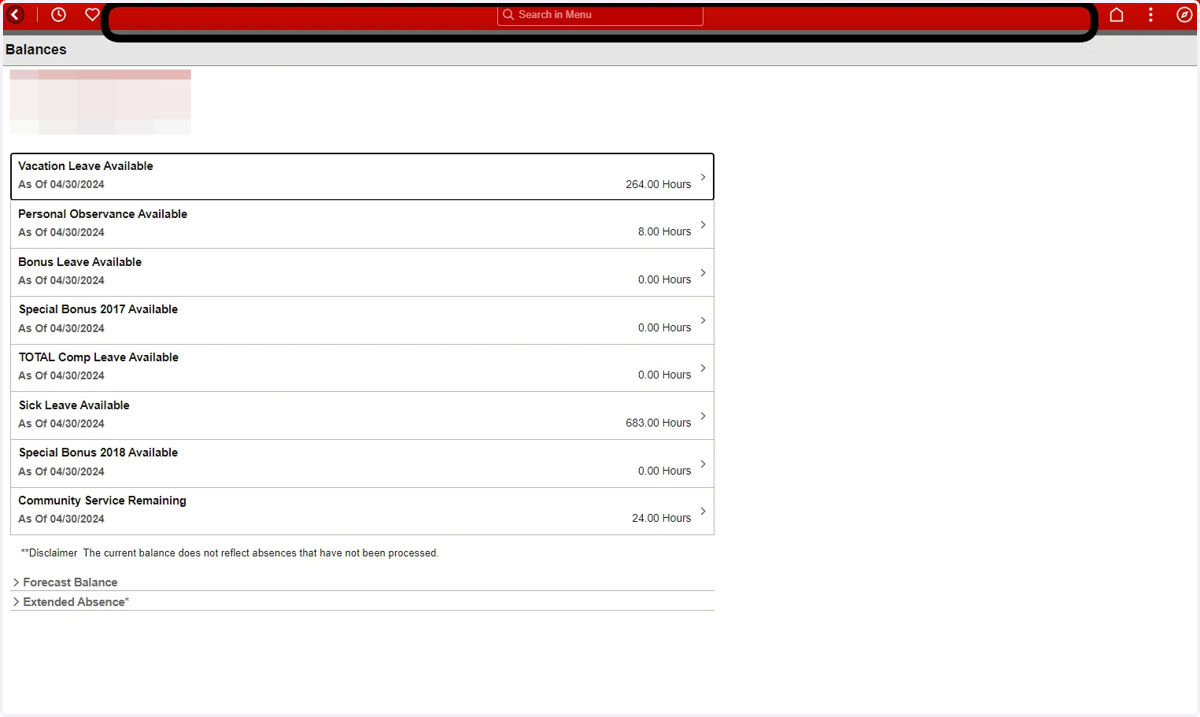
On the Balances page, you should be able to see the balance for each type of leave you have available.
Balances are updated every night and do not immediately reflect new absence requests.
Balances do not reflect absences that have not been processed.
Balances do not reflect leave requests submitted for future months.
6. View a Specific Balance
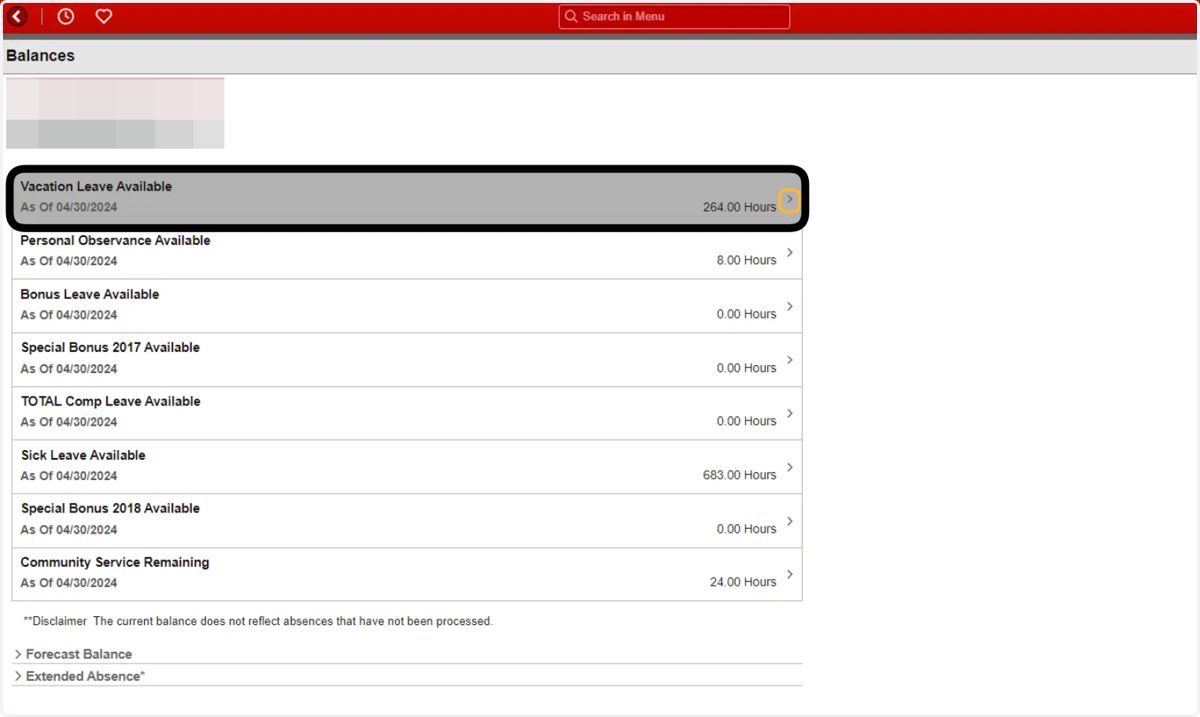
Click the gray arrow to the right side of the row to view a month-by-month breakdown of leave earned, taken, or adjusted.
Note: Monthly leave accruals occur after an employee has worked for half of the working days in the month.
7. View a Specific Balance Example
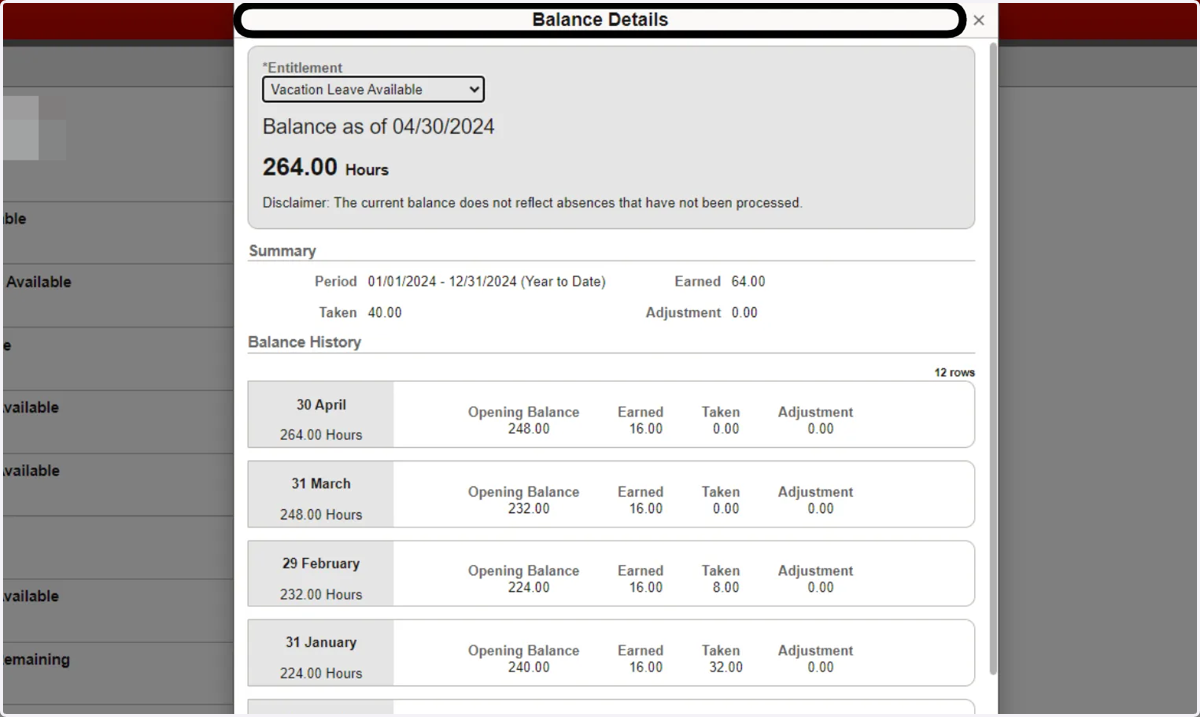
A pop-up titled “Balance Details” will appear and show the balance of the leave and when the leave was earned, taken, or adjusted for the year.
Example is showing the balance details regarding an employee’s Vacation/Annual Leave. Shows 64 hours have been earned, 40 hours have been taken YTD, and the remaining balance is 264 hours.
8. Forecast Balance
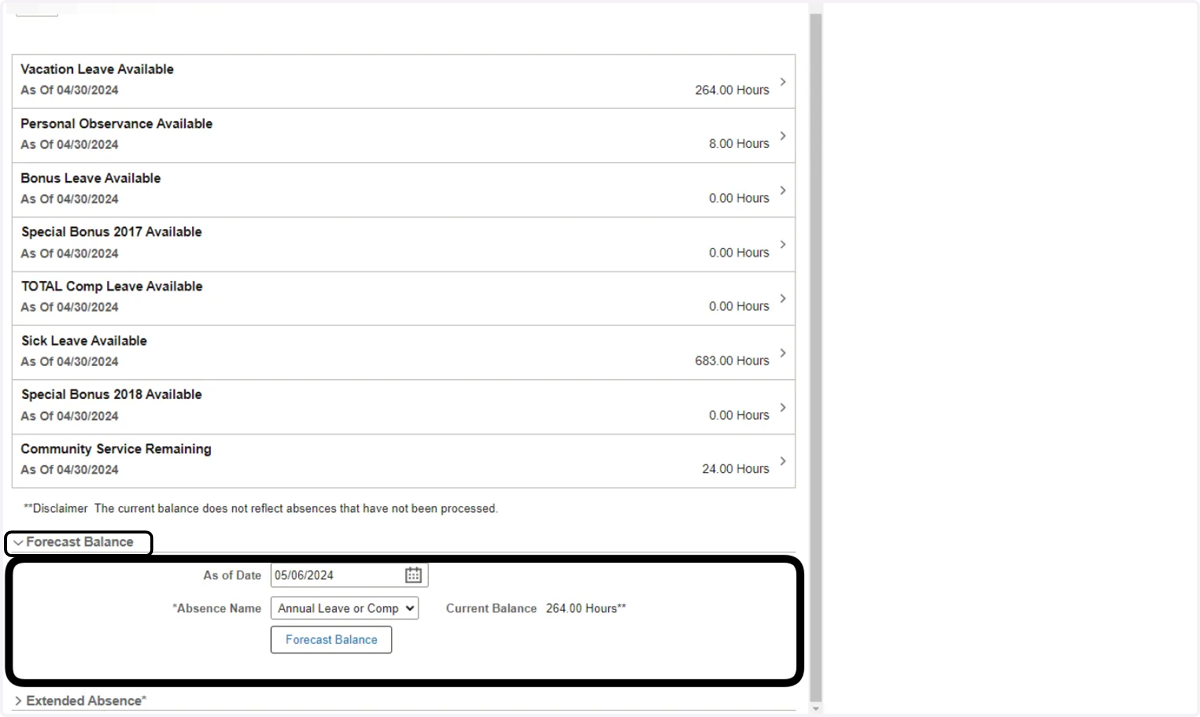
To determine a balance as of a specific date, factoring in unapproved leave requests and accruals up until that date, employees can Forecast their leave to that date.
Select the Forecast Balance tab near the bottom of the “Absence Balances” page.
Select the “As of Date” and enter the date you want to forecast, then click the “Absence Name” and enter the type of absence balance that you want to forecast.
Select the “Forecast Balance” button
Forecasting accounts for Saved requests, Submitted requests, Approved requests, and accruals.
9. Forecast Balance cont.
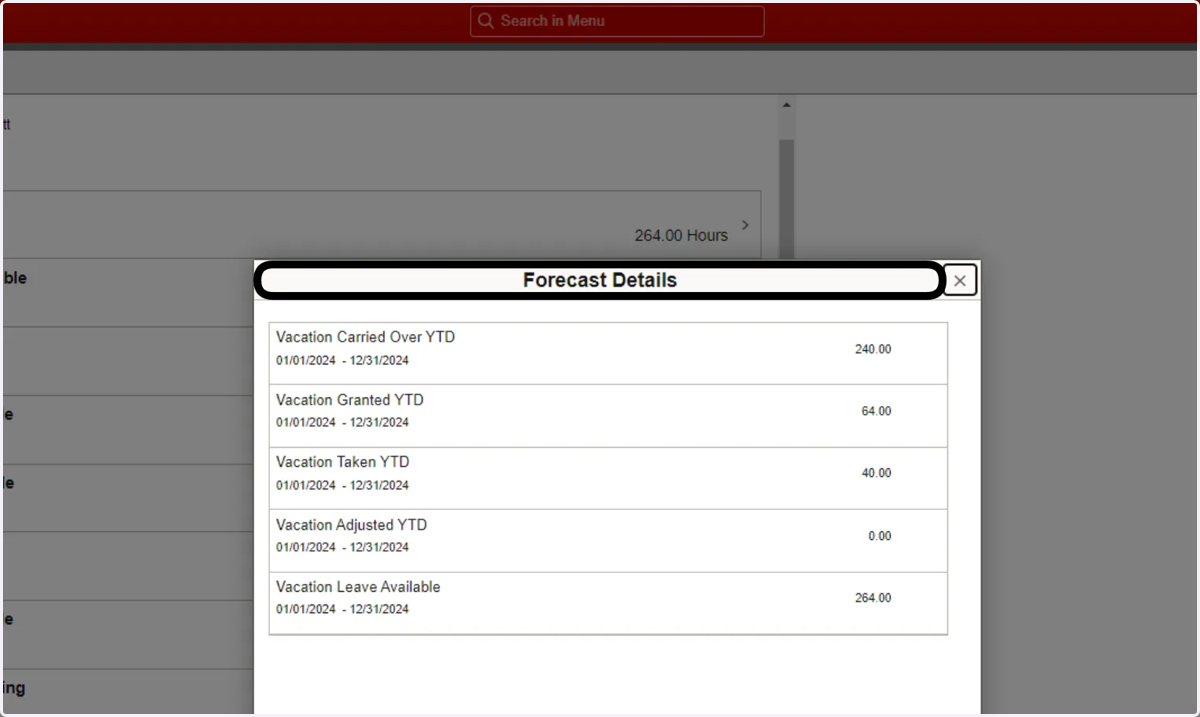
After clicking the Forecast Balance button, a pop-up labeled “Forecast Details” will appear.
This pop-up will include how much leave was carried over from the previous year, how much leave was granted, how much leave had been taken, how the leave was adjusted, and how much leave should be available.
The leave balances involved with the forecast are dependent on the date range selected.
The following example shows the Forecast Details regarding an employees vacation leave until 12/31/2024, shows what their balance will be at the end of the year if they request no additional sick leave before then.